Wednesday, December 7, 2011

VDS Best Practices

November 16 VMware Networking blog started 6 part blog about vDS Best Practice.

"These guidelines or best practices are discussed with reference to a sample example deployment. It is important to note that the suggestions/guidelines discussed here are based on the assumptions of the example deployment. Every customer environment is different as well as customer needs are different, and customers have to take that into account while designing the virtual network infrastructure using VDS. VDS is a flexible platform that can support different requirements from different customers. "

Some great information

Part 1 - Design Considerations
  • Design Considerations
  • Infrastructure design Goals
  • Infrastructure component configurations
  • Virtual Infrastructure traffic
  • Example Deployment components
  • Network Infrastructure
  • Virtual Infrastructure Traffic Types


Virtual Infrastructure Traffic Types

http://blogs.vmware.com/networking/2011/11/vds-best-practices-.html


Part 2 - Virtual and Physical Switch Parameters

  • VDS parameters
  • Physical Network switch parameters


 http://blogs.vmware.com/networking/2011/11/vds-best-practices-virtual-and-physical-switch-parameters.html


Part 3 - Rack Server Deployment with Eight 1 Gigabit adapters

  • Rack Server in Example Deployment
  • Rack Server with Eight 1 Gigabit Ethernet network adapters
  • Design Option 1 – Static configuration
  • Design Option 2 – Dynamic configuration with NIOC and LBT
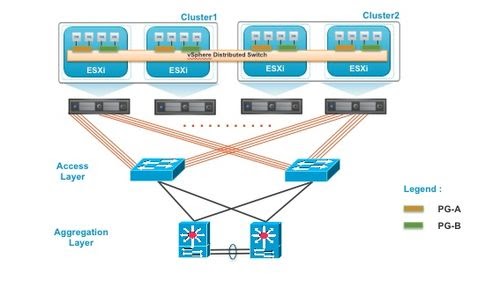
 Rack Server with eight 1 Gigabit Ethernet network adapters

http://blogs.vmware.com/networking/2011/11/vds-best-practices-rack-server-deployment-with-eight-1-gigabit-adapters.html


Part 4 - Rack Server Deployment with Two 10 Gigabit adapters

  • Rack Server with Two 10 Gigabit Ethernet network adapters
  • Design Option 1 – Static Configuration
  • Design Option 2 – Dynamic Configuration with NIOC and LBT

Rack server with 2 – 10 Gig NICs

http://blogs.vmware.com/networking/2011/12/vds-best-practices-rack-server-deployment-with-two-10-gigabit-adapters.html


*********************************************************
So far really good information and makes good reading. looking forward to Parts 5 and 6.

Thanks Venky.

Sunday, December 4, 2011

vCenter Chargeback Manager 2.0

VMware have released vCenter Chargeback Manager 2.0.

New in this Release
Automatic Report Scheduler
Charge thin and thick provisioned virtual machines differently
Cost variance and cost optimization
Showback Report
Apply fixed cost based on virtual machine state
Tier-based storage costing
Support for raw device mapping
Complete support for vSphere 5.0 and vCloud Director 1.5
New cost models and billing policies for vCloud Director

http://www.vmware.com/support/pubs/vcbm_pubs.html

You can the find download here
http://downloads.vmware.com/d/info/it_business_management/vmware_vcenter_chargeback/2_0

VMware also offer a free Online self paced course.

Title  VMware vCenter Chargeback Fundamentals
Summary  - Format:
  • Self-Paced
- Length: 1 Hours
Overview  This self paced course discusses how to install, configure and manage vCenter Chargeback to implement an effective cost accounting system for the virtualized environment.
Objectives  After completing this course, learners should be able to:
•  Describe the need for chargeback
•  Discuss Chargeback methods
•  Install and manage vCenter Chargeback application
•  Deploy vCenter Chargeback as a virtual appliance
•  Configure vCenter Chargeback application with common administration settings
•  Create and manage chargeback hierarchies
•  Create and manage cost models and templates
•  Generate and manage reports
•  Monitor System health and Perform common troubleshooting
Title  VMware vCenter Chargeback Fundamentals
Summary  - Format:
  • Self-Paced
- Length: 1 Hours
Overview  This self paced course discusses how to install, configure and manage vCenter Chargeback to implement an effective cost accounting system for the virtualized environment.
Objectives  After completing this course, learners should be able to:
•  Describe the need for chargeback
•  Discuss Chargeback methods
•  Install and manage vCenter Chargeback application
•  Deploy vCenter Chargeback as a virtual appliance
•  Configure vCenter Chargeback application with common administration settings
•  Create and manage chargeback hierarchies
•  Create and manage cost models and templates
•  Generate and manage reports
•  Monitor System health and Perform common troubleshooting


http://mylearn.vmware.com/MgrReg/courses.cfm?ui=www&a=one&id_subject=15658

Tuesday, November 29, 2011

Local Area Connection #2

During my time working with VMware vSphere and virtualising Datacenters. I have come across some weird events and one of them is this Local Area Connection # 2 after cloning VM's. This was highlighted again to me when I was "preping" for VCP5 in my LAB.


 The clone powers on and you login and start to customize.Then try to add IP to this Interface and you get a warning Networking Error: IP address already assigned to anther adapter.

To fix this I used to go into Device Manager and after enabling Show Hidden Devices ( KB here http://support.microsoft.com/kb/315539) and see and old Ethernet Network Interface and delete it..You may also need to go into registry and delete the corresponding key for Local Area Connection.Then add the IP address without error.


Below are links that help in resolving this behavior.


http://kb.vmware.com/selfservice/microsites/search.do?language=en_US&cmd=displayKC&externalId=1020078


http://support.microsoft.com/kb/2526142

http://support.microsoft.com/kb/2550978


BTW , same was commented here at Scott Lowe Blog.
http://blog.scottlowe.org/2011/11/25/problem-with-vmxnet3-driver/?utm_source=feedburner&utm_medium=feed&utm_campaign=Feed%3A+slowe%2Fcontent%2Ffeed+%28blog.scottlowe.org+Content+Feed%29

VCP 5 Experience

Its been some time since my last blog.....

Finally have my feet on the ground. 

So I started by building my LAB on my laptop ( IBM X201) and working my way threw the VCP 5 Exam Blueprint LINK.

Some good stuff here

http://virtuallanger.com/vcp5/

 Having a number of Cert's and familiar with the testing process and felt ready for the exam. I sat the exam on 5th November and passed!!!!

Compared to other exams didn't feel that it was any easier or harder but needed to know your stuff.

So my recommendation is build a LAB and follow the blueprint.

Friday, September 16, 2011

Auto Deploy PowerPack

My favorite tool  PowerGUI.

http://powergui.org/index.jspa

Alan Renouf  over at Virtu-Al has the Auto Deploy PowerPack.

"The Image Builder and Auto Deploy Powerpack is a PowerGUI Powerpack which enables us as VMware admins to have a graphical interface to Image Builder and Auto Deploy which are currently released as PowerShell snap-ins only."

He has also created a video on the basics how to use and import PowerPack.

Here is the Link Auto Deploy PowerPack

Wednesday, September 14, 2011

ESXi 5 Log Files

VMware have new locations for ESXi logs. Below are the logs, locations and a brief description.
Note: ESXi logs are in memory and syslog server is required if logs need to be retained.
VMware Log KB.
Also here is a link for to various VMware product log locations.
ESXi 5.0 Host Log Files
  • /var/log/auth.log: ESXi Shell authentication success and failure.
  • /var/log/dhclient.log: DHCP client service, including discovery, address lease requests and renewals.
  • /var/log/esxupdate.log: ESXi patch and update installation logs.
  • /var/log/hostd.log: Host management service logs, including virtual machine and host Task and Events, communication with the vSphere Client and vCenter Server vpxa agent, and SDK connections.
  • /var/log/shell.log: ESXi Shell usage logs, including enable/disable and every command entered.
  • /var/log/sysboot.log: Early VMkernel startup and module loading.
  • /var/log/syslog.log: Management service initialization, watchdogs, scheduled tasks and DCUI use.
  • /var/log/usb.log: USB device arbitration events, such as discovery and pass-through to virtual machines.
  • /var/log/vob.log: VMkernel Observation events, similar to vob.component.event.
  • /var/log/vmkernel.log: Core VMkernel logs, including device discovery, storage and networking device and driver events, and virtual machine startup.
  • /var/log/vmkwarning.log: A summary of Warning and Alert log messages excerpted from the VMkernel logs.
  • /var/log/vmksummary.log: A summary of ESXi host startup and shutdown, and an hourly heartbeat with uptime, number of virtual machines running, and service resource consumption.

Logs from vCenter Server Components on ESXi 5.0
When an ESXi 5.0 host is managed by vCenter Server 5.0, two components are installed, each with its own logs:
  • /var/log/vpxa.log: vCenter Server vpxa agent logs, including communication with vCenter Server and the Host Management hostd agent.
  • /var/log/fdm.log: vSphere High Availability logs, produced by the fdm service.

Tuesday, September 13, 2011

Booting ESX off USB/SD

Interesting blog at ESXi Chronicles regarding booting from USB/SD.

A snippet below.


At VMworld I was surprised at the number of questions I was asked related to booting ESXi off of USB/SD. Unfortunately, the vSphere docs largely assume you will use a local disk and don't really cover USB/SD, as such it’s not always easy to find answers to common questions. Below are some answers to several of the more popular USB/SD related questions.

1. What size USB/SD should I use?
The minimum disk size required to install ESXi is 1GB. When booting USB/SD there is little benefit to using a larger device because any space beyond the 1st GB will go unused. When choosing a USB/SD boot device, it’s not the size of the device that is important but the reliability of the device. Be sure to use good quality USB/SD devices.


You can read it here. http://blogs.vmware.com/esxi/2011/09/booting-esxi-off-usbsd.html